WordPress testing guide · Updated October 4, 2026
Test the change. Protect the live website.
A practical Hostinger staging workflow for updates, redesigns and deployment planning—without assuming an old test copy can safely replace new live data.
Explore Hosting Plans with Staging →
Eligible 10% code: TECHSOLV10. Confirm current features and your checkout discount.
Affiliate disclosure: We may earn a commission when you purchase through our links, at no extra cost to you. This is a documentation-based guide, not a report of a live staging deployment test.
Quick answer: staging is a test copy, not a safe merge button
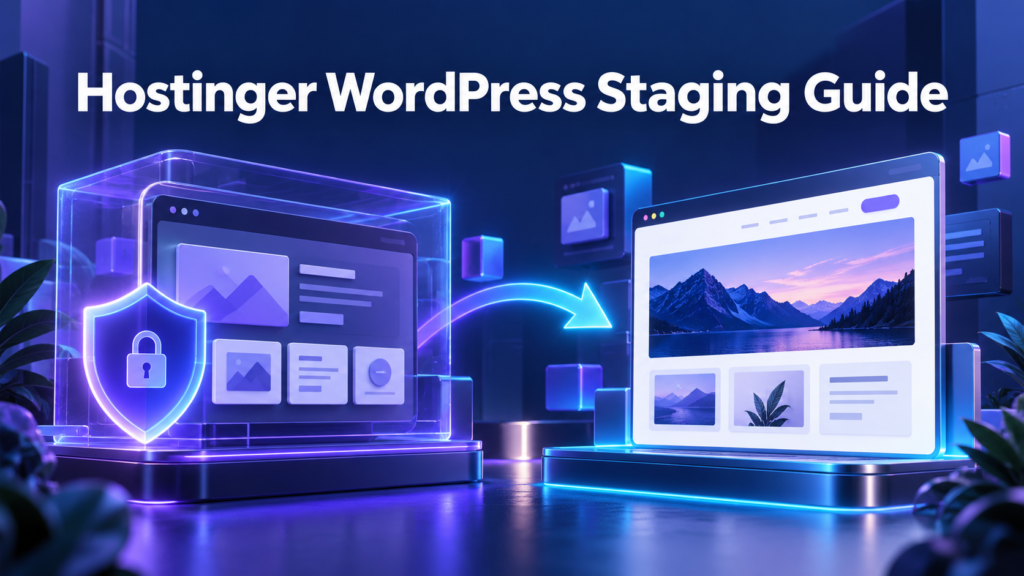
A WordPress staging site lets you examine changes away from the website your visitors use. It is useful for a theme redesign, a plugin update or a new page layout. The critical step is deciding how those tested changes reach production without replacing newer information.
Hostinger’s standard staging guide states that publishing replaces live files and the database with the staging copy. Changes made on the live website after that copy was created can be lost. Treat publishing as a deployment decision, not as a way to automatically combine two websites.
Our recommendation is simple: test on a recent copy, preserve a current backup, identify what has changed on production and choose a deployment method appropriate to your site. A blog that receives new articles and a store that receives orders need different release planning.
Who can use Hostinger’s built-in staging tool?
The official standard staging documentation lists Business web hosting or higher and requires a detected WordPress installation. Agency plans use a separate workflow. Verify your account’s current controls before buying a plan for this feature.
Do not confuse a WordPress installation with an AI Builder project. They have different editing and publishing systems. If you are choosing a platform, our AI Builder vs WordPress comparison explains why the workflow matters.
If Staging is missing, start by confirming the selected website and plan. Check whether Hostinger detects the intended WordPress installation. A missing menu does not, by itself, establish a broken website or a DNS problem. Record the exact screen and ask support about that specific installation if eligibility remains unclear.
Prepare the live site before creating the copy
Write down the purpose of this test. A useful brief is narrow: update one plugin and confirm the contact form, change the navigation and check the category pages, or redesign one article template. A vague instruction to improve everything makes the outcome difficult to verify.
Preserve a backup and identify how you would restore it. For WordPress, files and the database should belong to a consistent recovery set. Our Hostinger backup guide covers the planning questions to ask before relying on a stored copy.
Record the live site’s important journeys. Include the pages people visit, the buttons they use and the messages they expect. Keep a short baseline note with the active theme, relevant plugin versions and known issues. This prevents an existing problem from being mistaken for a new regression.
Choose a test owner and a release owner. They can be the same person, but the responsibilities should be explicit. Someone needs to decide whether the evidence is sufficient to deploy and what to do if production behaves differently.
Create the staging environment in Hostinger dashboard
- Open Websites and select the correct WordPress website’s Dashboard.
- Go to WordPress → Staging.
- Select Create staging, enter the preferred subdomain name and confirm Create.
- Allow the copy process to finish, then use Manage staging to open the test installation.
These steps follow Hostinger’s standard web-hosting guide. Labels and timing can vary. Read the account’s actual prompts, and do not assume a partly completed copy is ready for editing.
Before making a change, confirm the address and environment. Keep production and staging in clearly named browser tabs. A small habit—reading the hostname before every important action—can prevent a change from being saved on the wrong website.
Check representative pages in the copy. If images, menus or forms are already incorrect, investigate that baseline first. Testing an update on a copy that was broken before the update makes it harder to draw a useful conclusion.
External DNS and Cloudflare: verify the staging hostname
Hostinger says that external nameserver users must add an A record for the staging subdomain in the active DNS zone, pointing to the assigned Hostinger IP. This instruction concerns the standard subdomain staging workflow; Agency staging uses a different address pattern.
Get the IP from the relevant current hosting account. Do not copy an old address from an unrelated website or assume that production’s historical address is still correct. Confirm the exact staging hostname you created before changing its DNS.
Multiple A records are not automatically an error. Cloudflare documents round-robin DNS as a way to use several addresses for one hostname. However, unintended old addresses can make a staging setup inconsistent. Verify why each address exists before removing anything.
Keep the diagnosis specific. First confirm hostname and destination, then HTTPS and the response you receive. Do not change the root domain’s nameservers, production records or email records simply to make a staging copy load. Those changes affect separate services.
Keep staging out of search—and protect access separately
On the test installation, review Settings → Reading and the search-engine visibility option. WordPress documentation explains that “Discourage search engines from indexing this site” asks search engines not to index it. It does not block access.
That distinction matters. A noindex directive is a discovery instruction, not a privacy barrier. Use an appropriate access-control method if the copy contains private information. Verify the actual protection rather than assuming the word staging makes a site inaccessible.
Keep test pages out of public navigation and avoid promoting the staging URL. Use synthetic information for test records when possible. Share the test address only with people who need to review it and provide a clear description of the changes under consideration.
When deploying, inspect production’s visibility settings and page-level robots directives. A test setting can become an unintended production setting when data is copied. The public website should receive the intended indexing configuration after the release.
A test checklist that goes beyond the homepage
| Area | What to check | Useful evidence |
|---|---|---|
| Content | Representative article, category and landing pages | Headings, images and links display correctly |
| Navigation | Desktop and narrow-screen menus | Visitors can reach important destinations |
| Forms | Validation and a controlled submission | Expected confirmation and notification |
| Affiliate CTAs | Destination, disclosure and visibility | The intended link appears in the correct context |
| SEO | Titles, canonical and robots configuration | Environment-specific settings are correct |
| Store functions | Test checkout, shipping and email behavior | Provider-approved testing succeeds |
Use this as a starting point, not proof that every site needs the same checks. Add the functions your business actually relies on. A membership site needs an account-access check; an editorial site may need a publishing and archive check.
Record the outcome in plain language. “Form sent a notification to the test inbox” is more useful than “forms okay.” Include the page and the behavior so another person can repeat the check if a problem appears later.

Choose hosting for the work you need to do
Need a reliable space to test your next update?
Compare staging, backup features and the complete renewal quote. Try our 10% code on eligible purchases:
Compare Hostinger Plans & Check Your Discount →
Confirm product eligibility and the applied discount at checkout. No discount on every upgrade or renewal is promised.
Test one meaningful change at a time
Start with the change named in your brief. After saving it, test the affected journey and a small set of related pages. Updating several plugins, changing the theme and restructuring navigation at once makes the source of a failure harder to locate.
Use a short change log. Record what changed, why, and the result you observed. If the change does not improve the intended behavior, reconsider it before adding another layer. Staging is most useful when it supports a clear decision.
For design work, check readable line lengths, heading wraps, button labels and image placement. Colorful sections should make the page easier to scan. If the layout looks good but important text is hidden or a CTA is difficult to tap, the design is not finished.
Do not treat a test environment as a reliable performance benchmark by default. Cache state, traffic and environment configuration can differ from production. Use staging to catch functional problems, then evaluate relevant production behavior after the release.
WooCommerce and forms: prevent real-world side effects
A copied website may still contain integrations that communicate with outside services. Inspect payment gateways, email delivery, webhooks and scheduled actions before test activity. Do not assume that cloning WordPress automatically converts every connected service into a sandbox.
WooCommerce’s testing guidance recommends staging for testing payments and notes that test orders can trigger emails and appear in analytics. Use the gateway’s documented test mode and controlled test addresses. Avoid real charges and messages to customers.
For a contact form, route the test notification to an appropriate controlled inbox where the form system allows it. Identify the submission as a test. Check the confirmation screen and the notification separately: one can succeed while the other fails.
A store also needs a deployment plan for orders placed during the test period. Confirm how those orders and customer changes will be preserved. A successful test checkout does not justify replacing production’s database with an older copy.
Before Publish: reconcile changes made on production
Ask what has happened on the live website since the staging copy was created. New articles, comments, form entries, customer accounts and orders are examples of information that may exist only on production. List the affected data before choosing a release method.
If the deployment replaces the live database, a newer record will not become safe merely because it is absent from the test plan. Recreating records manually may be difficult or inappropriate. Establish a preservation method before clicking the final publishing control.
For a small design change, applying the tested setting directly to production may be more suitable than replacing the entire database. For code changes, a controlled file deployment may be possible. The correct approach depends on where the changed information is stored and which controls your plan provides.
Pause if the team cannot explain what will be overwritten. A hosting tool’s confirmation is a useful warning, but reading it does not resolve the underlying data conflict. Keep production running and obtain a workable release plan first.
Agency plans: selective publishing still needs judgment
The Agency staging documentation describes a Live dropdown for creating staging and temporary-domain test environments. Its publishing interface can select files, database or both. Do not assume the standard web-hosting interface offers the same selection.
Selective controls help only when you know where a change lives. A visual page builder may store layout data in the database. Copying files alone would not necessarily transfer that layout. Likewise, publishing database changes may affect more than the page you edited.
Map each intended change to its storage and dependencies. Include uploaded images, plugin settings and content references where relevant. Test the result of the selected deployment method rather than assuming a particular checkbox captures the entire change.
Check the current Agency documentation and account prompt before releasing. Its overwrite warning remains important. A selective publish is not a promise of conflict-free synchronization or preservation of every new production record.
After deployment: verify production and keep recovery ready
Open the public website and repeat the important user journeys. Check the released pages, menu, images and primary calls to action. Confirm that the expected changes are visible and that ordinary visitors can still complete their tasks.
If content appears stale, review the appropriate cache controls. Clear only the relevant layers and verify again. A cache explanation should be supported by what changed after the refresh, rather than used as a default answer for every missing update.
WooCommerce’s update guide emphasizes a current backup, staging tests and checks for store functions such as shipping, tax, payment and email behavior. Apply the same evidence-based approach to the particular functions your site uses.
If recovery is needed, identify what has changed since the selected backup point. Restoring can also replace new data. Preserve relevant information and use an appropriate clean recovery set. After rollback, repeat the same production checks before declaring the issue resolved.
Is a plan upgrade worth it for staging?
Our editorial view: staging is more valuable when you make regular changes, run business-critical forms or maintain a store. For a rarely edited brochure site, the decision may depend more on the total hosting package and who provides technical help.
Compare the cost of the plan with the work you actually perform. A built-in staging feature can reduce setup friction, but it cannot replace a backup routine, functional testing or a deployment plan. The feature is useful when someone consistently uses it.
Review our Hostinger plan comparison and renewal-price guide before committing. Check current eligibility, the billing term and the full renewal amount in your checkout.
Try TECHSOLV10 for 10% off eligible purchases through our affiliate link. Confirm that it changes the payable total. We do not guarantee that every upgrade, add-on or renewal qualifies, and a discounted price does not make an unsuitable plan the right choice.
Frequently asked questions
Does creating staging change my live design?
It creates a test copy for separate work. Publishing that copy is a different action with consequences for production data.
Can I publish staging without losing new orders?
Do not assume so. A database replacement can overwrite newer production data. Confirm a preservation and deployment method suitable for the store.
Why does my staging URL not open with Cloudflare DNS?
Confirm the exact hostname and its current hosting destination in the active DNS zone. Investigate HTTPS and the actual error separately. Avoid unrelated production or email changes.
Does noindex protect a staging site?
No. It asks search engines not to index the site; it does not stop someone opening the address. Use appropriate access control for private data.
Should I submit staging pages to Bing or Google?
No. Submit intended public production pages. Keep test copies out of your public indexing workflow.
Can TECHSOLV10 discount every plan upgrade?
No universal eligibility is promised. Try the code on eligible purchases and confirm the actual checkout total.
Choose hosting for the work you need to do
Compare staging and backup features before choosing.
Compare staging, backup features and the complete renewal quote. Try our 10% code on eligible purchases:
Compare Hostinger Plans & Check Your Discount →
Confirm product eligibility and the applied discount at checkout. No discount on every upgrade or renewal is promised.