Quick verdict
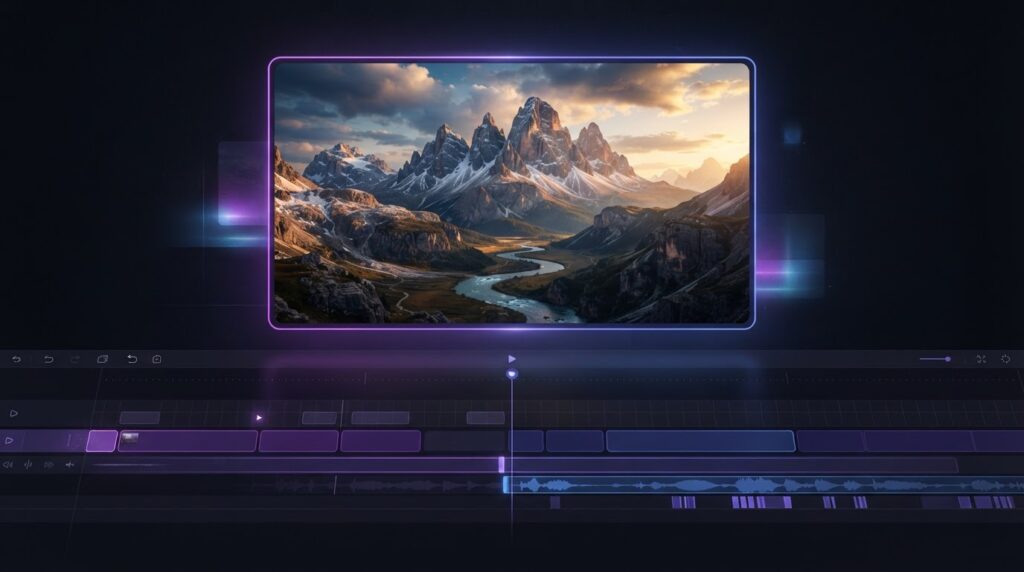
VideoExpress.ai is worth considering if you need short generated shots for ads, social videos, or storyboards and want to assemble them on a timeline. The $49 Basic plan is the first one to compare for five-second shots. Consider $179 All-Access if you regularly need ten-second clips, character lip-sync, or the bundled captions app. For projects that depend on exact product details or continuity across scenes, budget time to review and edit the output.
Affiliate disclosure. MentorsReview may earn a commission if you buy through a link on this page, at no extra cost to you.
See the current VideoExpress.ai offer
Compare the plan listed at checkout with the clips and editing tools you need.
VideoExpress.ai pricing and plan limits
Deciding between the two plans? Read our VideoExpress.ai Basic vs All-Access comparison for a 30-second promo example and a breakdown of the $130 price difference.
The VideoExpress.ai offer page advertises two one-time plans and a 30-day money-back guarantee. The vendor’s pricing guide lists $49 for Basic and $179 for All-Access before any applicable discount. Confirm the plan name, final total, add-ons, and refund instructions for the specific checkout before paying.
| Plan | Listed price | Listed clip length | Monthly fair-use cap |
|---|---|---|---|
| Basic | $49 | 5 seconds | 3,000 rendered clips |
| All-Access | $179 | 10 seconds | 6,000 rendered clips |
The clip length describes the generated shot. A finished piece can use several shots assembled in the editor. The practical question is whether a shot lasts long enough for the action you want, not just whether the final video fits the project limit. Both plans list a timeline editor and 1080p renders in the vendor’s comparison. Check the export settings of the workflow you intend to use before promising a format to a client.
The vendor applies monthly fair-use caps to fully rendered AI clips. Its pricing guide says previews do not count. If you work with a team, confirm how usage is counted before estimating capacity. A campaign with several versions, repeated attempts, and backup shots can use more renders than the number of clips that reach publication.
All-Access lists lip-sync, scene and background tools, object removal, sound effects, and a subtitles and captions app. If you already add captions or clean up footage in another editor, compare the value of the bundled tool with your current workflow. The vendor also lists a separate allowance for the included TalkingPhotos feature. Confirm the current tool-specific limits if spoken portraits are a major reason you are considering the higher tier.
Check the plan before you pay
Verify the final price, plan name, and feature limits for your intended workflow.
VideoExpress.ai examples and output quality
The vendor’s public gallery shows sample prompts alongside generated clips. Watch a sample that resembles what you actually plan to make. When judging character footage, check the face and hands frame by frame near the beginning and end. When judging a moving object, compare its outline, markings, and apparent size throughout the shot.
A gallery is useful for identifying styles and seeing whether basic motion looks plausible. It rarely tells you how many attempts it took to make each clip. This review uses the vendor’s documentation and published examples. The workflow below is a test you can run with your own assets to measure usable outputs and editing time.
Use three short briefs. First, ask for a slow push toward an object with a simple background. Next, animate an image you own and check whether the source object stays recognizable. Finally, create a second shot that must cut naturally after the first. Note the number of previews and renders you need, then judge the assembled sequence at the size at which you plan to publish.
How to build a short video with VideoExpress.ai
Start with a brief and a shot list. Write down what the viewer should understand after watching. For an ad, that might be one product feature and the next action. Give each shot one job. A simple sequence could open with the problem, show a close-up that illustrates the feature, and finish on a clean title card. You can estimate how much screen time each shot needs before you compare plans.
Use text-to-video when you can tolerate variation. Describe one subject, one main movement, and a simple camera direction. For example, request a slow camera move across a desk toward a closed notebook. Once the movement looks usable, try a second prompt with lighting or framing changes. Test one change at a time so you can see which instruction improved the shot and which introduced visual errors.
Use image-to-video when the starting frame matters. Begin with a reference photo you have the right to use. Try a restrained motion, such as a slow push-in or light movement in the background. Compare the result against the reference. Pay close attention to lettering, surface texture, and edges. If details drift, keep the original image for the product close-up and use the generated footage for atmosphere or a transition.
Assemble the clips around the narration. Put the voice or temporary read on the timeline before fine-tuning cuts. Trim visually busy openings and give the viewer enough time to read any text. Add key claims, prices, and brand copy as editable overlays so they can be corrected without generating the footage again. Check that any music leaves enough room for speech.
Check the export on the device your audience uses. Watch once with sound and once muted. Confirm that the first frame makes sense, the captions remain legible, and the closing action stays on screen long enough to read. Check a vertical crop if the video will appear in a short-form feed. Keep the source clips and narration separate so a price or branding update takes a targeted edit instead of a full rebuild.
VideoExpress.ai pros, cons, and best use cases
Pros
Combining clip generation and timeline assembly can simplify early drafts. Short clips are well suited to inserts, establishing shots, and visual concepts. The vendor’s published plan comparison makes clip duration and fair-use limits visible before purchase. The absence of recurring plan fees also makes it easier to compare the listed price with the cost of your current tools.
Cons
Output can vary from one attempt to the next. Exact typography, packaging, and identity across shots can take cleanup. The five-second Basic clip length can fragment an action that needs a continuous take. All-Access offers more options, but longer clips and continuity tools still need review before you use them for a branded campaign or client brief.
For ecommerce
A generated background or texture shot can support an ad, but inspect the actual product closely wherever it appears. If the shape, controls, logo, or label changes, substitute verified footage or animate around your original image. This matters most on product pages and in paid creative, where buyers may rely on what they see to decide whether the product meets their needs.
For social creators
Use it to add a short visual hook, fill a gap in a narrated clip, or explore several visual ideas before editing. If you repurpose the same video across channels, check how a platform crops the frame and overlays its own interface. Leave enough space around key text and faces, then export a version for each placement you plan to use.
For client work
Agree on who supplies source images, who approves the depiction of products and people, and how many revisions are included. Review the vendor terms and confirm rights for the materials you upload. Get the client to review a short draft early, especially if the brief relies on a consistent spokesperson or a recognizable product detail.
If you need a narrated whiteboard explanation, compare our DoodleMaker review. For still visuals and mockups, see the Artistly AI review. If you prefer to build videos from established templates, compare the workflow in our VideoCreator review.
Plan for continuity across several shots
Keep a short reference sheet with the subject’s clothing, proportions, surroundings, and lighting. Use the same descriptive details when generating adjacent shots, and keep reference frames alongside the footage. Watch each cut in sequence. A change in sleeve color or object position might be invisible when you review clips separately, yet draw attention as soon as the two shots play back to back. If the sequence cannot survive a direct cut, insert a neutral detail shot or replace the weaker clip.
Decide where lip-sync matters
Try one line with simple phrasing and one with a name or specialized term. Review consonants, pauses, and the moment the mouth returns to rest. Watch the clip once at normal speed before inspecting individual frames. For a brief social hook, slight variation may be acceptable. For a customer-facing spokesperson or training lesson, set a higher bar and use a recorded voice or conventional footage when clarity matters more than the generated character.
Track the cost of getting a usable shot
Record the number of attempts, the time you spent reviewing previews, and the minutes needed to edit the clips you kept. A practical comparison might use a thirty-second promo with several shots, one title card, and a voiceover. Include time spent fixing captions and replacing weak footage. Compare that number with a project built from your own footage or stock assets. The useful measure is the time to an approved video, from the first brief through the final export.
Check how revisions will work
A client may ask to change an offer, replace a product image, or trim the video after the first approval. Keep the script, narration, title cards, and generated shots organized separately so you can make a small change without rebuilding the whole sequence. Save an export with clear version names. If another team member needs to take over, document which clips were generated and which assets need to remain editable.
Frequently asked questions
Does VideoExpress.ai have a monthly fee? The vendor lists Basic and All-Access as one-time payments. Check the exact billing terms shown for your order and read the conditions for any optional additions.
Does it really offer unlimited generation? The vendor describes fair-use caps of 3,000 fully rendered clips per month for Basic and 6,000 for All-Access. Its pricing guide distinguishes previews from renders. Individual tools can have their own limits, so check the specific feature you will use.
Is All-Access worth the extra $130 at listed prices? It depends on whether the premium tools replace work you already pay for or repeatedly do by hand. If you need lip-sync on almost every clip, the feature may be central. If most projects only need brief background footage, test whether Basic would cover the same workload.
Can I use the clips in paid work? The vendor advertises commercial use. Review the current terms and clear rights for the images, music, and voices you supply. Keep the relevant permissions with the project if a client asks how the footage was produced.
What should I check about coupons and refunds? Look for the code shown on the offer page and see whether the total changes in the checkout before paying. The vendor advertises a 30-day guarantee. Read the instructions applicable to the order and keep the receipt.
Is VideoExpress.ai worth it?
Choose Basic if your main goal is generating short shots for a timeline and five seconds is enough per shot. Compare All-Access if a typical week includes character dialogue, longer generated motion, or premium edits that would otherwise require another tool. For either plan, judge the results against one real project and count the time needed to fix or replace clips. That tells you whether the tool earns a place in your workflow.
Choose the plan that fits your next video
See the current offer and confirm the clip length and tools you need.