BUILDER DECISION GUIDE · Updated October 9, 2026 · By David Russell
Missing the Weebly upgrade button? Understand Bluehost’s current support position, choose a workable WordPress route, and avoid paying for the wrong solution.
Affiliate disclosure: We may earn a commission when you buy through our Bluehost link. Our recommendation is to check your existing plan and migration requirements before purchasing.
Quick answer: do not buy Bluehost expecting the old Weebly Builder
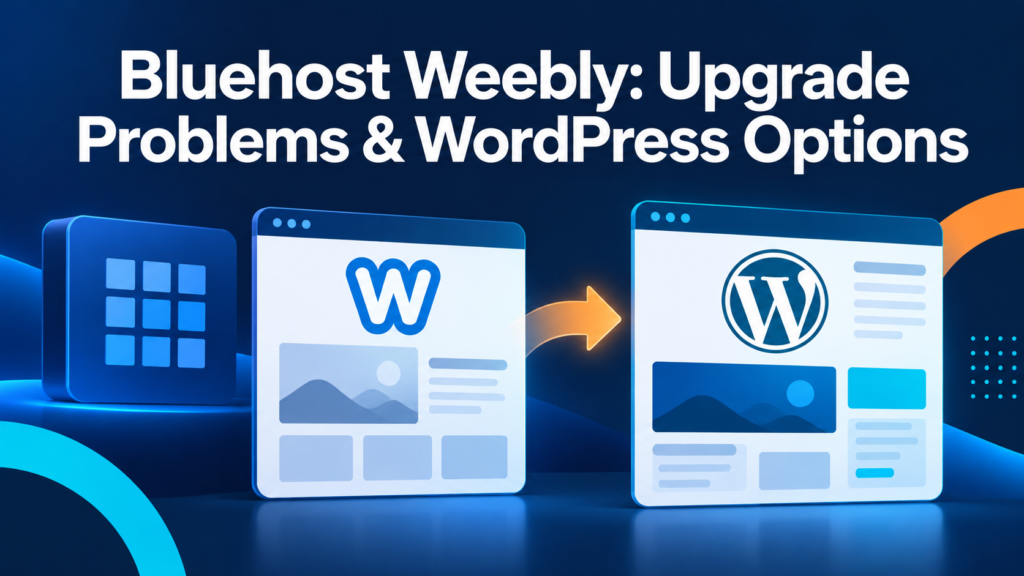
Bluehost’s August 2026 support article states that it no longer supports the Weebly Builder and no longer offers Weebly upgrades. If an old tutorial tells you to purchase a Bluehost hosting plan and launch Weebly from the dashboard, do not treat that as current setup guidance. Confirm the tools available in your actual account before spending money.
For a new website, compare Bluehost’s current WordPress options with the features you need. For an existing Bluehost Weebly website, first preserve your content and inspect your account status. Then choose whether to rebuild manually, test a content importer, or request professional help with a defined scope.
Our recommendation is to make the destination decision before purchasing a replacement subscription. A small brochure site may be straightforward to recreate. A store, membership site, or large blog needs more planning because the important work extends beyond copying visible text.
This is a decision and planning guide, not a claim that we personally migrated your website or benchmarked Bluehost. Account access, plan availability, export results, and migration-service eligibility can vary. A smooth move starts by identifying those details, rather than relying on a promise that every site can transfer with one click.
What “Bluehost Weebly” means today
The phrase Bluehost Weebly appears in older articles because people used the Weebly website builder through a hosting account. It is easy to confuse that historical arrangement with a current plan feature. The distinction matters: a hosting subscription and a particular website editor are separate parts of your website.
A legacy website may still be visible online even when upgrading or managing its old builder becomes difficult. A missing upgrade button should prompt you to check support information and ask about your specific account. It does not prove that all your content disappeared or that buying a more expensive hosting plan will restore the editor.
Bluehost’s current documentation directs users with Weebly upgrade problems toward WordPress. That is useful evidence for the direction of its support guidance; it is not a personalized migration quote or an assurance that your website’s design and functions transfer automatically.
Also separate Bluehost’s former integration from a direct Weebly account or a Square-related service. Verify where you log in, which provider bills you, who controls the domain, and where the live site is hosted. Similar branding does not mean identical tools, cancellation terms, or export paths.
Four facts to establish before changing anything
First, identify the account and billing relationship. Locate the relevant invoices and account dashboard, and record the service name. If an agency originally built the website, confirm who owns the hosting account and domain. You need a clear path to approve changes and retain control after the move.
Second, verify access to content. Can you open the editor, download original images, view the public pages, or use an export feature? The method available to a direct Weebly customer may differ from a legacy hosting integration. Save the resources you can legitimately access before the situation becomes more difficult.
Third, establish how the domain and email are connected. Your domain registrar, authoritative DNS provider, website host, and email provider can be different companies. Moving the website does not require casually replacing every DNS record or moving email at the same time.
Fourth, list the business functions that must survive. A brochure website may need contact forms, a map, service pages, and a phone number. A store may need products, payment settings, orders, tax configuration, and customer communications. This list becomes your acceptance checklist and prevents a visually attractive rebuild from losing an essential function.
Choose a route: rebuild, import, or hire help
A manual rebuild is often a reasonable editorial choice for a small site whose design can be improved. You recreate the important pages in WordPress, upload your media, rebuild the navigation, and configure the necessary forms. The tradeoff is your time and attention, but you can decide exactly what to keep and what to replace.
An importer may reduce repetitive content entry for a larger blog. Treat it as an experiment on a separate destination, not as a guarantee of a complete website. Inspect representative pages and media before importing everything. A content file is not the same thing as a working store or a faithful reproduction of the original theme.
Professional help is worth comparing when the website is business-critical, has complicated functions, or has more content than you can check carefully. Request a written scope that distinguishes content transfer, design work, URL mapping, functional setup, and testing.
Bluehost discusses these three broad routes in its Weebly upgrade guidance. Choose based on what must be preserved and your capacity to review the result. A route that sounds faster can still be expensive if it creates cleanup work your team cannot complete.
| Route | Potential fit | Work to plan | Choose when |
|---|---|---|---|
| Manual rebuild | A small portfolio or service site | Page setup, forms and styling | You have time to check each page |
| Tested content importer | A substantial text-content library | Layouts, media and functional checks | A trial produces usable content |
| Professional project | Stores, complex sites or limited time | Written scope, approvals and acceptance tests | The business needs accountable help |
| New WordPress site | A reader starting from scratch | Plan selection and ongoing maintenance | No legacy site needs transferring |

Can you use an existing Bluehost plan?
If you already pay Bluehost for hosting, start by asking whether your current subscription can support the WordPress destination you intend to build. Check website slots, storage, account limitations, and the staging or temporary-site options available to you. You may not need a second hosting subscription simply because the builder changes.
Avoid installing the replacement into the same location as the working site without a backup and a clear plan. A separate test destination gives you time to check content, links, and functionality while the old site remains available. Ask support or your developer which approach is appropriate for the account.
Choose a plan according to the finished website, not the label on an old tutorial. A single service website, a growing blog, several client sites, and a WooCommerce store have different requirements. Look beyond the introductory headline to the renewal price and the features billed separately.
Read our Bluehost plan guide and renewal-cost guide before buying. If your existing plan already meets the destination’s needs, spend your effort on the rebuild and testing. Upgrading hosting is useful only when it solves a verified capacity or feature requirement; it does not automatically convert Weebly into WordPress.
Related guides: Bluehost plans for bloggers, renewal costs, optional Bluehost add-ons, and website migration choices.
Build a content inventory that prevents avoidable losses
Create a simple worksheet with one row for every important public URL. Record its page title, purpose, main content, images, downloadable files, and the action visitors should take. Mark the pages that attract inquiries, support purchases, or contain information customers repeatedly need.
Save original media separately when you have access. A screenshot can help you remember a layout, but it is not a substitute for the original image or downloadable document. Preserve text in a format you can edit, and keep any available export alongside those files.
Include pages that are easy to overlook: thank-you pages, legal information, navigation destinations, category pages, and older posts linked from useful articles. Keep the useful material even if you improve the design. A rebuild should not become an accidental content deletion exercise.
Separate the information you own from third-party material you cannot freely reuse. Preserve existing permissions and attribution where needed. If an image was only embedded from another site, decide whether to replace it with an authorized local asset instead of carrying over a fragile hotlink.
Use the inventory during review. Check each required page and function against the destination, and record any intentional changes. That makes the final approval concrete: the website is ready because the agreed requirements work, rather than because its homepage looks finished.
Recreate the useful pages in WordPress
Start with the structure: Home, About, Services or Products, Blog if needed, and Contact. Give each page a clear job. A visitor should quickly understand what you offer, who it suits, and how to contact or purchase from you. Do not copy a confusing menu merely to imitate the old site.
Choose a theme that supports readable typography and a straightforward mobile layout. Keep the first version simple. Rebuild a few representative pages before investing time in decorative details, so you can confirm the chosen approach works for long text, product information, and contact elements.
Move text thoughtfully. Preserve useful explanations and update details that are no longer accurate. Check headings, lists, tables, and embedded links after pasting. Old editor formatting can leave inconsistent spacing or unexpected styles. Review what visitors see rather than assuming the editor preview is sufficient.
Upload the images you are entitled to use into the destination Media Library. Add descriptive alternative text where appropriate and use sizes suited to the page. Rebuild forms with a supported WordPress solution and test delivery to the correct inbox.
Finish the navigation and footer before launch. Link to important service pages, contact information, and relevant trust pages. This work is often more valuable than replicating every old animation because it determines whether a reader can complete the business action.
Test imports carefully instead of promising one-click migration
If you explore an importer, read the current tool’s documentation and confirm the source format it accepts. Bluehost references a Weebly-to-WordPress tool in its support guidance, but a reference alone does not establish current availability, compatibility, or suitability for confidential content. Review the tool before providing information or starting a transfer.
Run a small representative test when possible. Include a page with images, a longer article, a page with internal links, and any unusually formatted content. Compare the result against the original. Determine what the tool transfers and which elements still need manual rebuilding.
The WordPress importer works with a suitable WordPress export file; an arbitrary website ZIP is not automatically that format. If you receive an XML export, confirm that it is compatible with the selected importer. A file with the right extension can still contain the wrong structure.
Watch for duplicates after a failed attempt. WordPress’s import documentation notes that an interrupted process can create some content before failing, so rerunning it may duplicate records. Review the destination before repeating an import.
Do not assume that forms, custom layouts, member access, or store behavior came across simply because posts appeared. Keep the import output as a starting point, then work through the content and function checklist before switching the live website.
Treat an online store as a separate migration project
For a store, visible product descriptions are only part of the operation. List the catalog, variations, inventory, order information, customer records, payment integrations, shipping rules, tax settings, discounts, transactional email, and refund workflow that the business actually uses. Confirm which data can be exported and imported safely.
Do not assume a page-content importer handles that list. Ask a migration provider specifically what it supports, what it excludes, and what the business must recreate. If the destination is WooCommerce, plan the store configuration independently from the theme and blog content.
Test the customer journey on the prepared destination. Check product selection, cart behavior, checkout configuration, shipping calculations, and customer communication using an appropriate supported test process. Verify the contact and support details that customers will use if something goes wrong.
Plan how to handle activity during the move. New orders or updates on the old site can create a mismatch between the export and launch. Agree on a cutover process appropriate to your business instead of copying data once and assuming nothing changes afterward.
For a revenue-critical store, professional help may be worthwhile even if you can rebuild ordinary pages yourself. Evaluate the specialist’s scope and your internal review responsibilities. We are not promising zero downtime, complete data portability, or unchanged sales during a platform change.
Keep your domain and email under control
A website move and a domain transfer are different tasks. You can often keep the same domain registrar while pointing the website to a new destination. Whether that is the right choice depends on your account, DNS setup, and provider requirements. Do not transfer the domain solely because you changed the page builder.
Record the current DNS configuration before making a planned cutover. Identify the records used for the website and those used for email and verification. If your email already works, preserve the relevant email configuration unless moving it is part of an explicit separate plan.
Ask the destination provider for the correct website connection instructions. Apply changes at the authoritative DNS provider, which may be different from the company that sold the domain. Avoid changing nameservers without understanding which records must be carried over.
Verify the destination with the intended domain and HTTPS after the switch. Check both the root domain and the www version according to your chosen configuration. Send and receive a test email if DNS changed, and test form notifications independently.
Keep account ownership and renewal responsibilities documented. The person who can edit the website may not be the person who controls the domain. Resolving that before launch is far easier than discovering it when a renewal or DNS change becomes urgent.
Protect important URLs and search visibility
If you keep the same domain and URL paths, record that intention in your inventory and verify the final pages actually use those addresses. If paths change, create a mapping from each important old URL to its relevant replacement. Avoid sending unrelated old pages to the homepage merely to eliminate errors.
Google’s migration guidance recommends permanent redirects when URLs move, updated internal links and canonical signals, and monitoring after the change. Redirect implementation depends on where the old URL is served and the tools available there. Plan that responsibility before retiring the old site.
Check the destination’s sitemap and indexing settings at launch. Private test content should not accidentally become the public version, and the finished production pages should not retain an unintended noindex setting. Inspect representative pages in your webmaster tools when you have access.
A redesign or platform change can affect search visibility; neither a migration service nor a hosting purchase guarantees unchanged rankings. Review broken links, server errors, and the affected queries after launch. If traffic is limited, allow enough time for meaningful observations rather than drawing conclusions from a single day.
For the broader hosting-transfer decision, read our Bluehost website migration guide. This page focuses on a builder rebuild, which is different from copying an existing WordPress installation between hosts.
Calculate the whole switch, including renewal and rebuild work
There is no responsible universal price for moving a Weebly website to WordPress. A small manual rebuild and a complex store have different requirements. Your budget should distinguish the hosting subscription, optional paid tools, professional work, and the time your own team spends preparing and reviewing the site.
Record the first-term total and renewal total for the hosting plan you are considering. Check the number of websites, storage, backup arrangements, domain renewal, email needs, and any separately billed features. A low monthly equivalent may require a longer upfront commitment.
If you request professional help, compare written quotes for the same scope. Ask whether the price includes media transfer, forms, URL redirects, design adjustments, store setup, and post-launch review. A cheaper quote can be poor value if it excludes the work you actually need.
Our Bluehost affiliate link is associated with an advertised special 50% offer. We could not independently confirm its current checkout terms through the research tool, so treat the link as a way to check eligible pricing, not a guaranteed saving. Confirm the actual discount and renewal charge before payment.
Do not buy a new plan just to qualify for an offer if your existing account already supports the rebuild. The useful outcome is a working destination at a sensible total cost, not the largest percentage on a promotion.
Who should choose which option?
New blogger with no existing site: compare current WordPress hosting and builder options directly. You do not need a migration project, and you should not choose Bluehost for a legacy Weebly feature. Focus on writing, readable design, basic maintenance, and the renewal cost you can afford.
Freelancer with a small portfolio: a manual rebuild can be a practical starting point if you have time to review it. Preserve the work samples, service explanations, and contact path. Improve the mobile presentation, and confirm that inquiries reach you before announcing the new site.
Business owner with an established content library: test an importer or request a scoped migration quote. Pay attention to internal links, media, authorship, and important URLs. Your review plan matters as much as the transfer method because partial imports can look complete at first glance.
Store or membership operator: treat the move as a functional and data project. Get professional advice when your team cannot confidently verify the required behavior. Hosting choice comes after the requirements are clear.
These are editorial recommendations based on common task differences, not fabricated case studies. Choose the route that matches your website and your ability to maintain the destination. If you prefer an existing supported platform and it already meets your needs, changing to WordPress is not automatically the best business decision.
Your launch checklist and first-month review
Before switching the public website, review the important pages against the inventory. Check desktop and mobile layouts, menus, buttons, image loading, forms, and downloadable files. Read the service descriptions and contact details as a customer would. Ensure there is a clear next step on the pages intended to generate business.
Confirm backups and a recovery plan appropriate to the destination. Agree on who handles the launch, who checks the live site, and how unresolved issues will be recorded. Keep the old material and account access available until you have verified what you need, rather than canceling everything immediately.
After the switch, test the public domain, HTTPS, redirects, contact forms, and email. Check a few old bookmarked URLs and links from useful articles. Record intentional changes so a missing page is not mistaken for an overlooked task.
During the next two weeks, prioritize functional problems and indexing feedback. Around the first month, review organic impressions, clicks, inquiries, and sales where reliable reporting exists. A page view is not a qualified lead, and an affiliate click is not a confirmed commission.
Evaluate whether the new workflow actually makes updating content easier for your team. The migration is useful when it solves the original limitation and preserves the website’s purpose. A polished design should support that goal, rather than becoming the only measure of success.
Frequently asked questions
Does Bluehost still support the Weebly Builder?
Its August 2026 support article says Bluehost no longer supports Weebly Builder or offers Weebly upgrades. Confirm the status of your particular legacy site with support.
Is Bluehost’s old Weebly integration the same as Weebly.com?
Do not assume so. Verify your login, billing provider, editor and domain setup. This guide addresses Bluehost’s legacy builder situation.
Can I keep my domain when rebuilding in WordPress?
Often the same domain can serve the replacement website, but the connection method depends on your setup. Plan DNS changes and protect existing email records.
Is a Weebly rebuild covered by free WordPress migration?
Do not assume a WordPress-to-WordPress transfer offer covers a Weebly website. Ask for explicit eligibility and a scope describing the rebuild work.
Will my design and rankings stay exactly the same?
No guarantee is appropriate. Layouts and functions may need rebuilding, and a platform change can affect search visibility. Preserve useful content and test the result.
Should I purchase Bluehost before checking my existing account?
Check first. An existing subscription may already support the intended WordPress destination. Buy or upgrade only for a verified requirement.
Our recommendation
For an existing Bluehost Weebly website, preserve the content, confirm your account options, and choose a rebuild route matched to the site’s functions. For a new website, evaluate current WordPress tools rather than buying for a legacy Weebly integration. A hosting purchase should follow that decision, not replace it.
Official sources and review method
Documentation reviewed October 9, 2026. This guide includes editorial planning advice; it is not a personal migration test or a provider quote.
- Bluehost: Weebly upgrade issue and WordPress alternatives
- Bluehost: transferability and migration limitations
- WordPress: importing content and duplicate-import risks
- Google: site moves with URL changes
Account-specific access and service eligibility require confirmation. Current affiliate-offer checkout terms could not be independently verified through our research tool. No ranking, migration time, performance or sales guarantee is made.
About the author
David Russell writes for MentorsReview. This guide helps U.S. bloggers, freelancers, agencies and small businesses distinguish legacy website-builder advice from current hosting and rebuild decisions.